You came up with a good address for your Cvent site, discussed pricing with your Account Manager, filled out the form for a private domain or custom URL, and waited the appropriate amount of time for it to appear in your account. Now what? The wait is finally over. It's time to associate your URL to a specific event, contact website, or page within your account. But remember, a single address can only lead to one place so if you have multiple events or sites, you'll need to alter the URL by appending the event or site name to the end.
| NOTE: Once attendees arrive on a page from a custom URL, the trailing name will appear as a string of numbers and letters. |
1 Add an event name to your URL. Begin by selecting your event. From the Event navigation, hover over Marketing, then click Weblinks.
Click Change Domain.
Choose your custom address from the Website Domain dropdown.
Enter the name you want to add to your URL in the Trailing Event Name field. The trailing name can be a combination of 3 to 50 letters and numbers, however, spaces or special characters cannot be used. Trailing names for private domains and custom URLs are case sensitive, so lowercase text is recommended.
| NOTE: Trailing names cannot be customized in Attendee Hub, Webinar, or Essentials events. |
Use the Landing Page radio buttons to specify the webpage this URL will take people to.
| NOTE: If you're using Attendee Hub and want to use your custom URL or private domain for the Attendee Website, you must first enable the Event Website or Registration feature under Details > Event Features. |
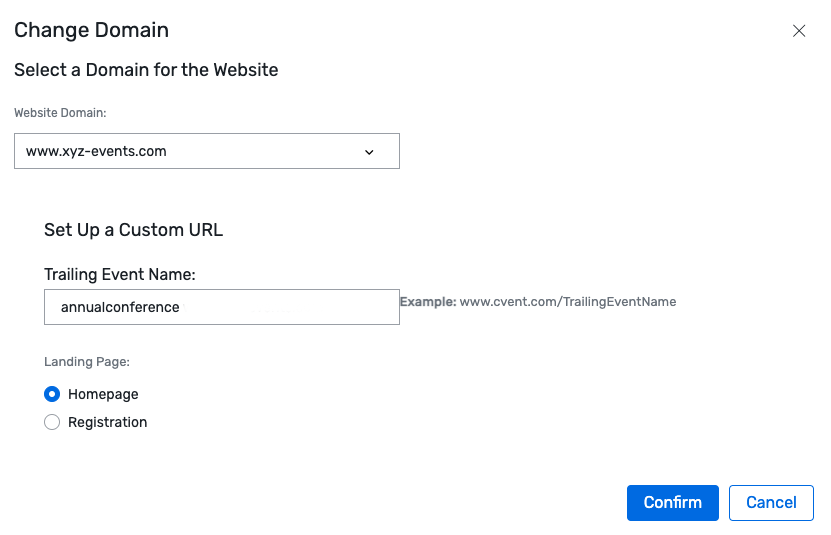
Once you're done, click Confirm. A Custom Link section appears with the event's customized URL, which you can now distribute to your invitees.
| NOTE: Not seeing your custom domain or URL for an Attendee Hub link? The URL will adjust once an attendee opens it. |
2 Specify your URL's landing page. Now that your events and contact websites have a custom version of your URL, what happens to plain old www.YourCompany.com? Until you specify a landing page for this root domain, like an event, calendar, or contact website, it will route you to a generic Cvent search page. You can change this at any time and it won't affect your event-specific URLs.
Begin by hovering over the global navigation, then click Admin. From the Admin navigation, hover over Data Lists, then click Custom Domains. Select your custom address from the list, then click Edit.
In the Domain Target field, select Custom, then, from the Custom Target field, click the ellipsis (...). When the pop-up appears, enter criteria and click Search. Select an event, contact website, or event calendar from the list. Then choose if the URL should be the default in all newly created events.
Click Save.