A feature only available in OnArrival Premium, Access Control allows you to limit who can get into a session. Follow these steps to enable Access Control for a single device in the OnArrival app.
| NOTE: When you enable Access Control in OnArrival, it's only enabled for the single device you're using at that moment. Want to set up Access Control for all devices? Follow these instructions instead. |
Configuring Access Control in OnArrival for iOS Devices
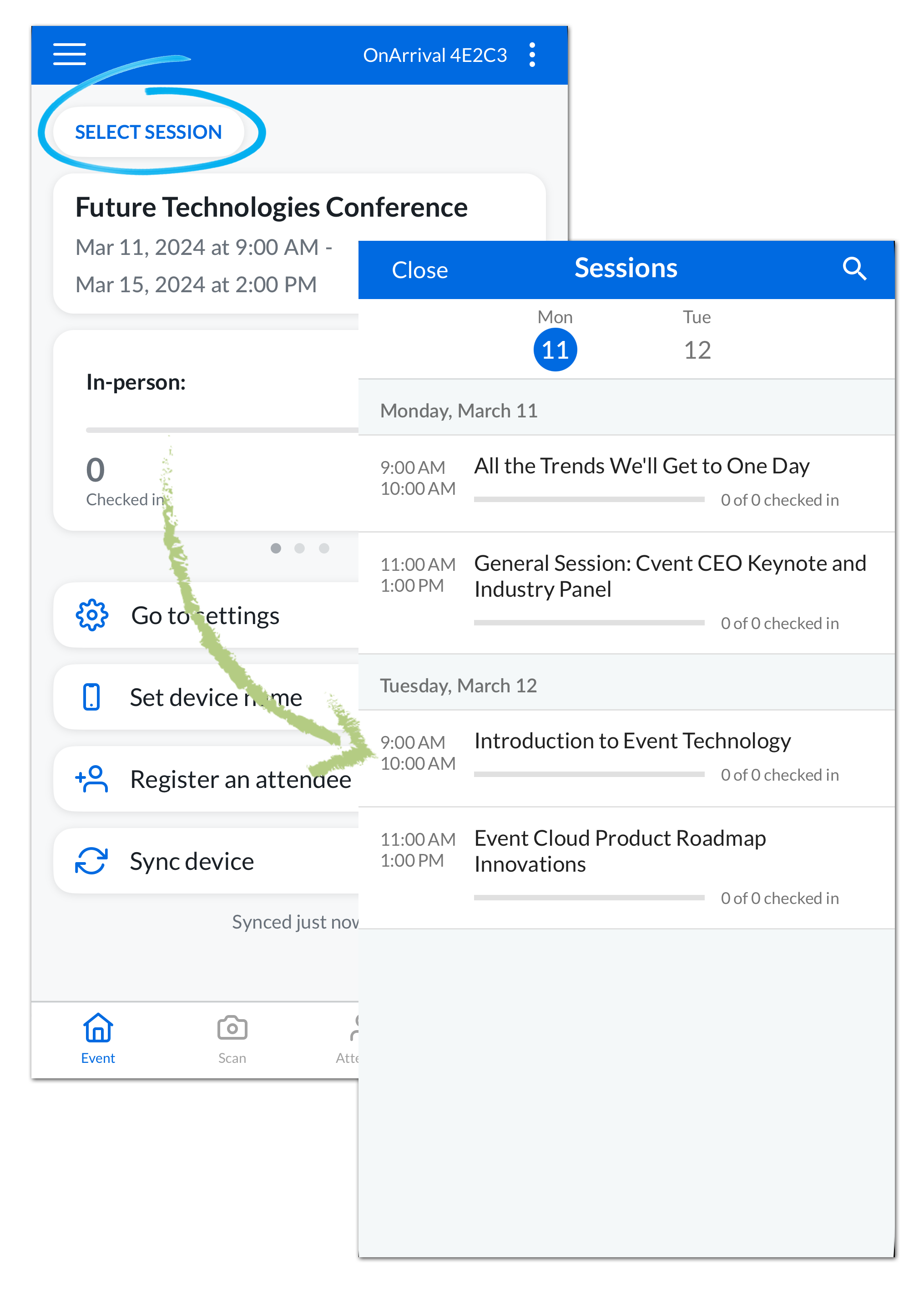
1 Access your session. Begin by logging into the OnArrival app and selecting your event. Tap SELECT SESSION and choose a session from the schedule.
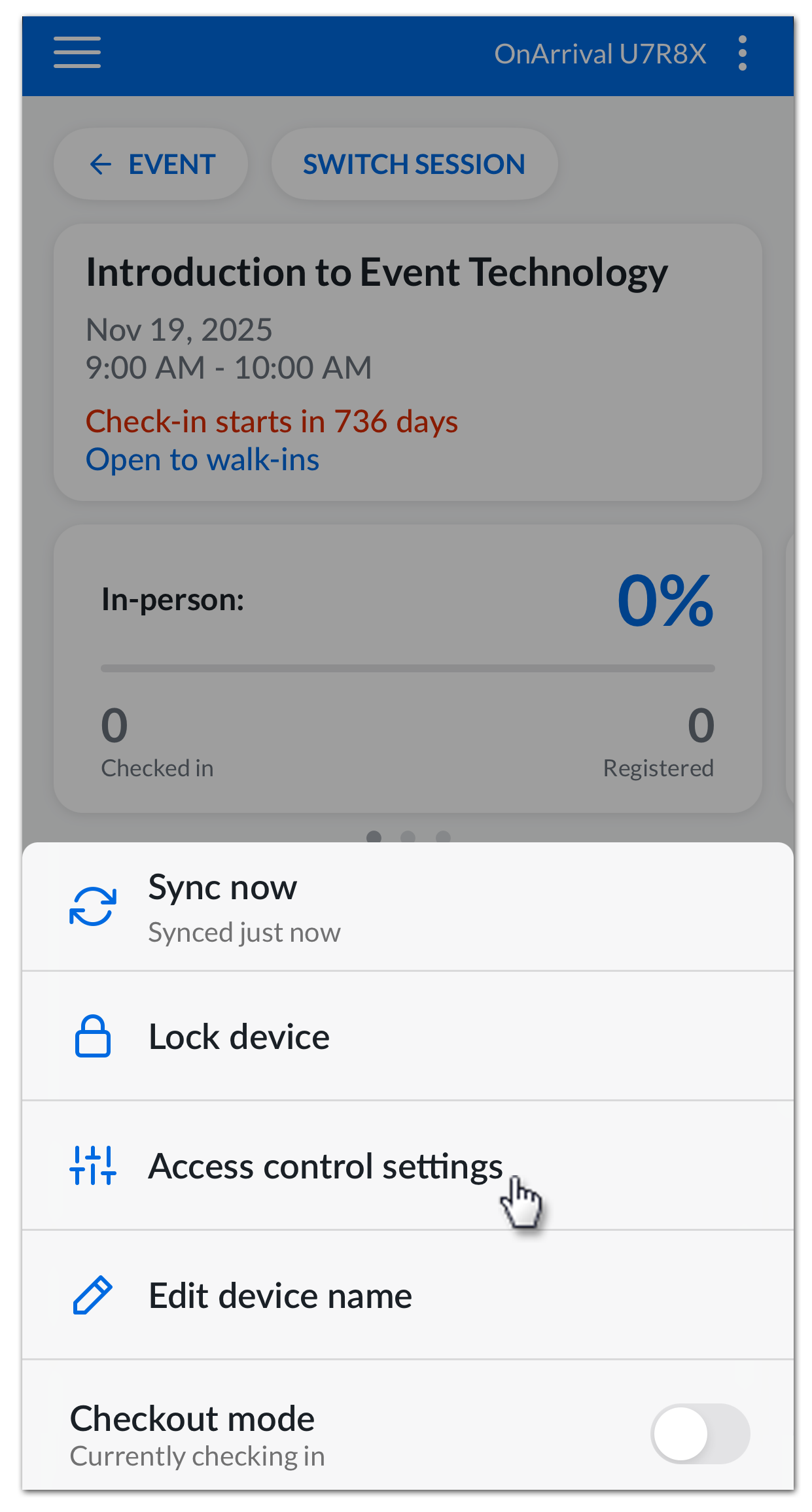
2 Enable Access Control. Tap the  icon in the top-right, then Access control settings.
Toggle "Ignore access control rules" to blue to allow walk-ins for this session. You can also override the session's set capacity by toggling "Ignore capacity rules" to blue, if desired. If you do, the "Session Full" message will no longer appear while checking attendees into the session, even if the number of checked-in attendees meets or exceeds the session's previously set capacity.
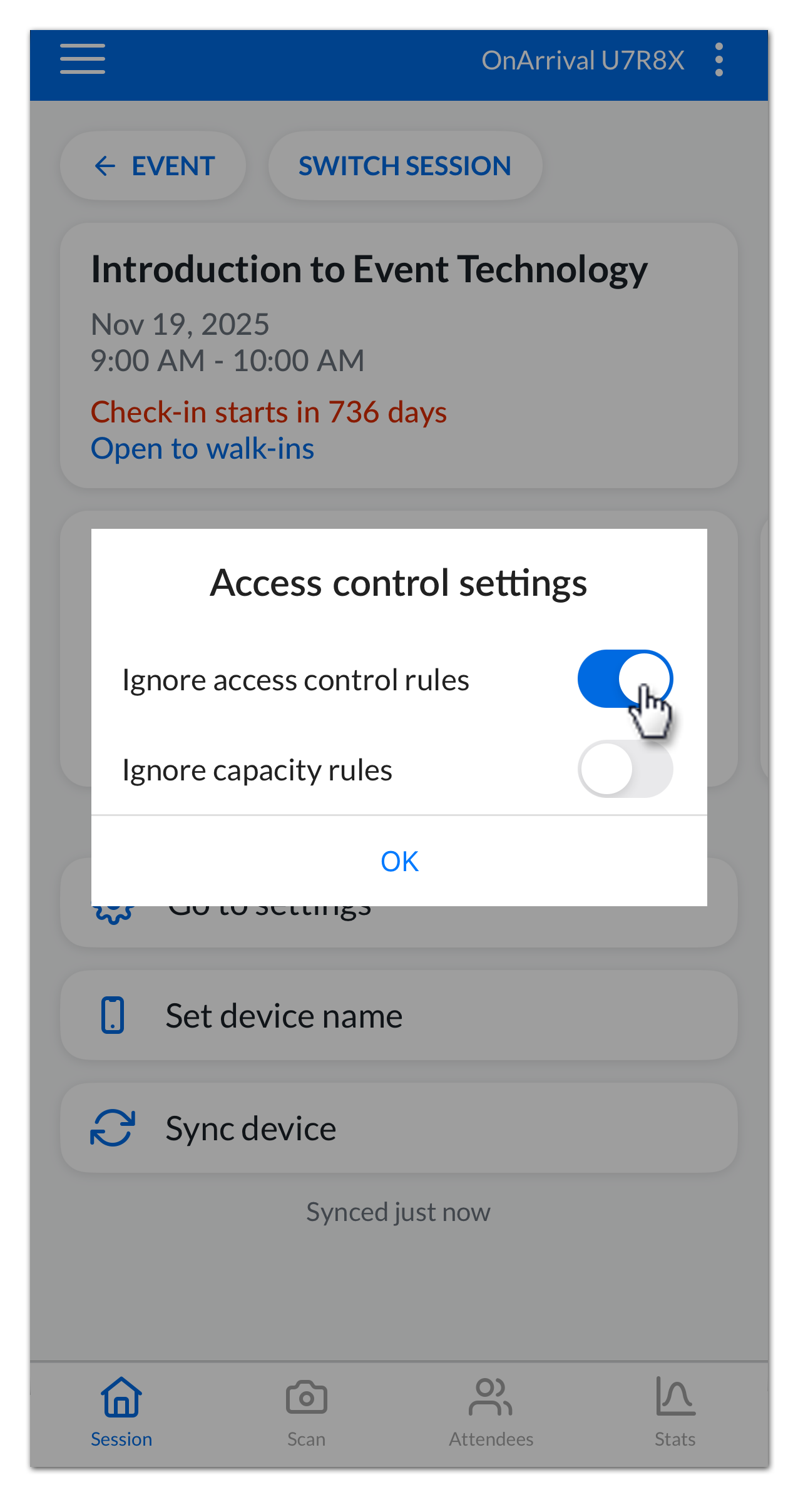
When you're finished, tap OK. Repeat these steps for each session that you want to enable Access Control for, and on each device you'll be using onsite.
Configuring Access Control in OnArrival for Android Devices
1 Access your session. Begin by logging into the OnArrival app and selecting your event. Tap SELECT SESSION and choose a session from the schedule.
2 Enable Access Control. Tap the  icon in the top-right, then Access Control Settings.
Toggle "Ignore access control " to blue to allow walk-ins for this session. You can also override the session's set capacity by toggling "Ignore capacity" to blue, if desired. If you do, the "Session Full" message will no longer appear while checking attendees into the session, even if the number of checked-in attendees meets or exceeds the session's previously set capacity.
When you're finished, tap Done. Repeat these steps for each session that you want to enable Access Control for, and on each device you'll be using onsite.